1. Starting the show
Press Start Show— from the rundown editor or from the control share link. The first row becomes the current item, its countdown starts, and every connected screen switches from “Waiting for show start” to the live view at the same moment. A rundown needs at least one row to start.
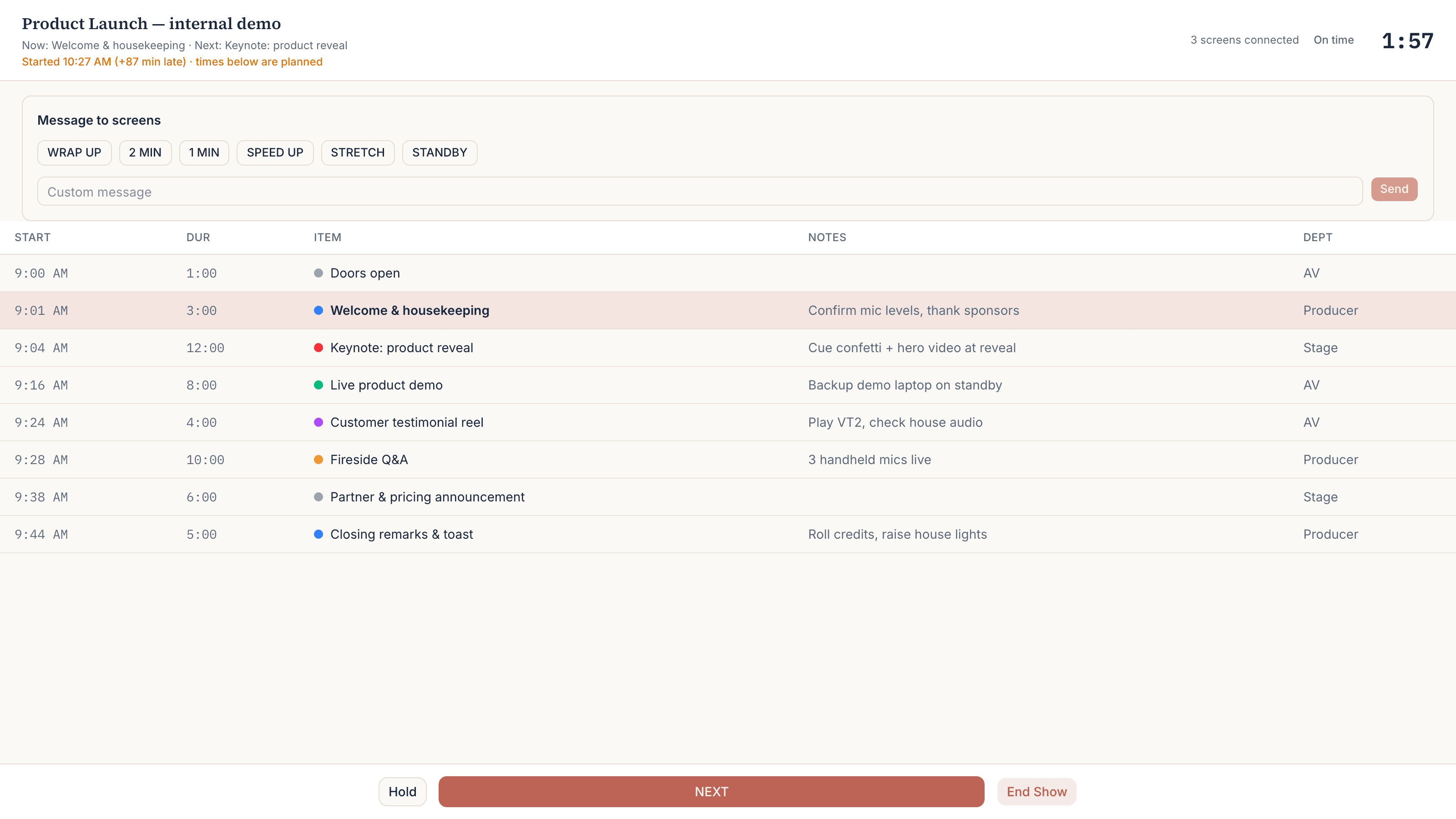
Countdowns are computed on each screen from shared server timestamps, and the server state only changes when the operator acts (start, NEXT, hold, resume, end) — screens aren’t waiting on a server tick every second, which is what keeps a room full of devices in agreement.
2. NEXT, and jumping
NEXT moves to the following row and records the real moment it started. To skip ahead or go back, click any row in the rundown — the show jumps straight to it. Jumping backward re-runs a row; jumping forward skips the rows in between (they keep their place in the rundown but are simply never current).
3. Hold and Resume
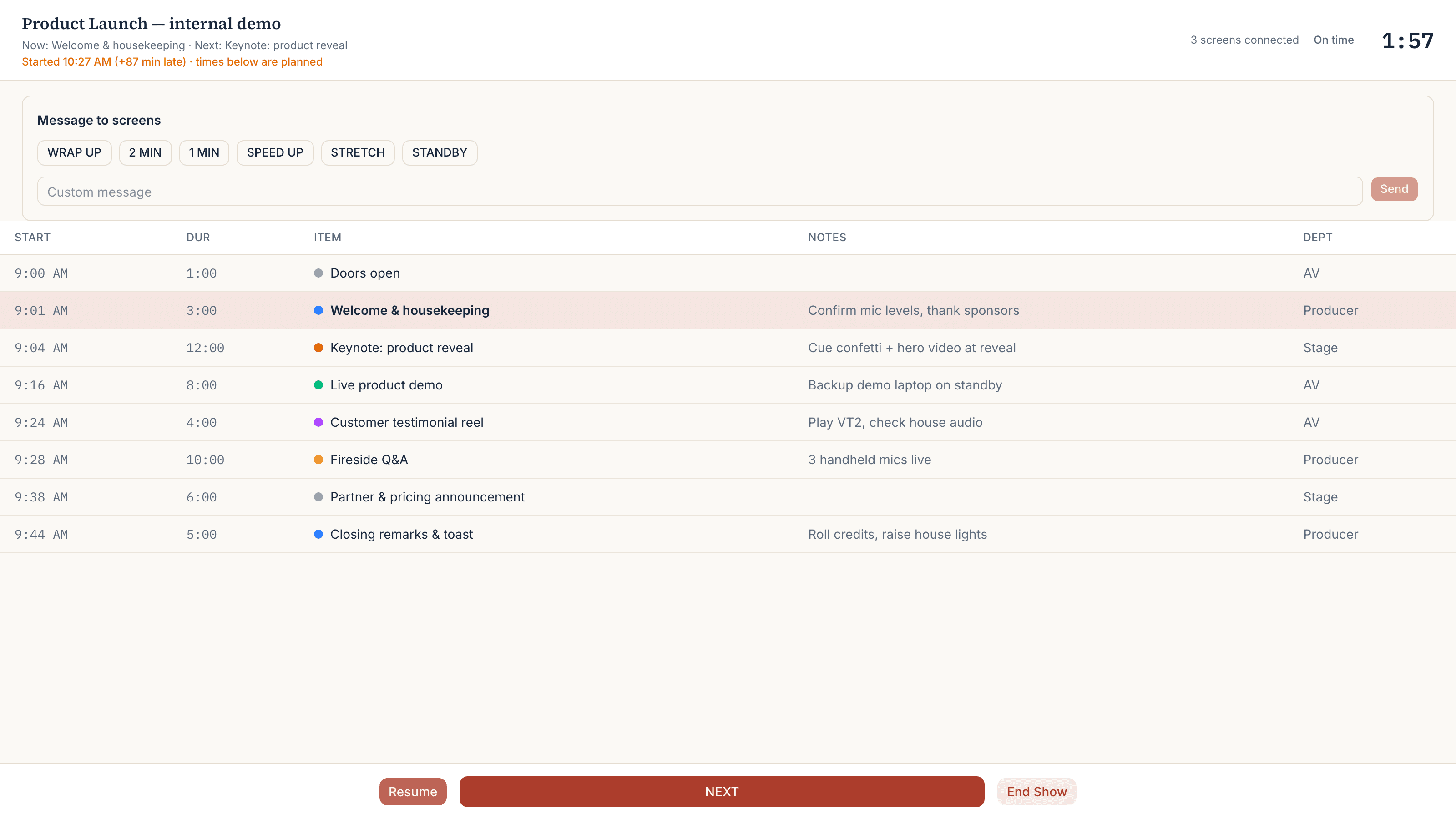
Holdfreezes the current item’s countdown — for a fire alarm, a speaker who hasn’t arrived, a technical stop. Two things are true during a hold, and they are deliberately different:
- The countdown stops where it is. Pressing Resume picks it up from exactly that point.
- The start times below the current row do notstop. A ten-minute hold makes everything after the current item ten minutes later, and the screens show that while it’s happening rather than jumping when you resume. Hold time counts as real lateness in the drift indicator for the same reason.
Pressing NEXTduring a hold releases it and advances — you don’t have to resume first.
4. Messages to screens
The control view can push a short banner to every crew and stage screen: one-tap presets (WRAP UP, 2 MIN, 1 MIN, SPEED UP, STRETCH, STANDBY) or a custom message up to 120 characters. Clearremoves it. This is the show caller’s cue channel for the people who aren’t on comms.
5. The drift indicator
The header of the control and crew views shows how the show is tracking against plan: On time (within 30 seconds), +2:41 late, or -1:10 ahead. Drift compares real elapsed time with how much of the plan should have been consumed by now, so it stays flat while the current item is within its planned duration and only climbs once an item actually overruns (or a hold is in progress).
6. How live reflow works
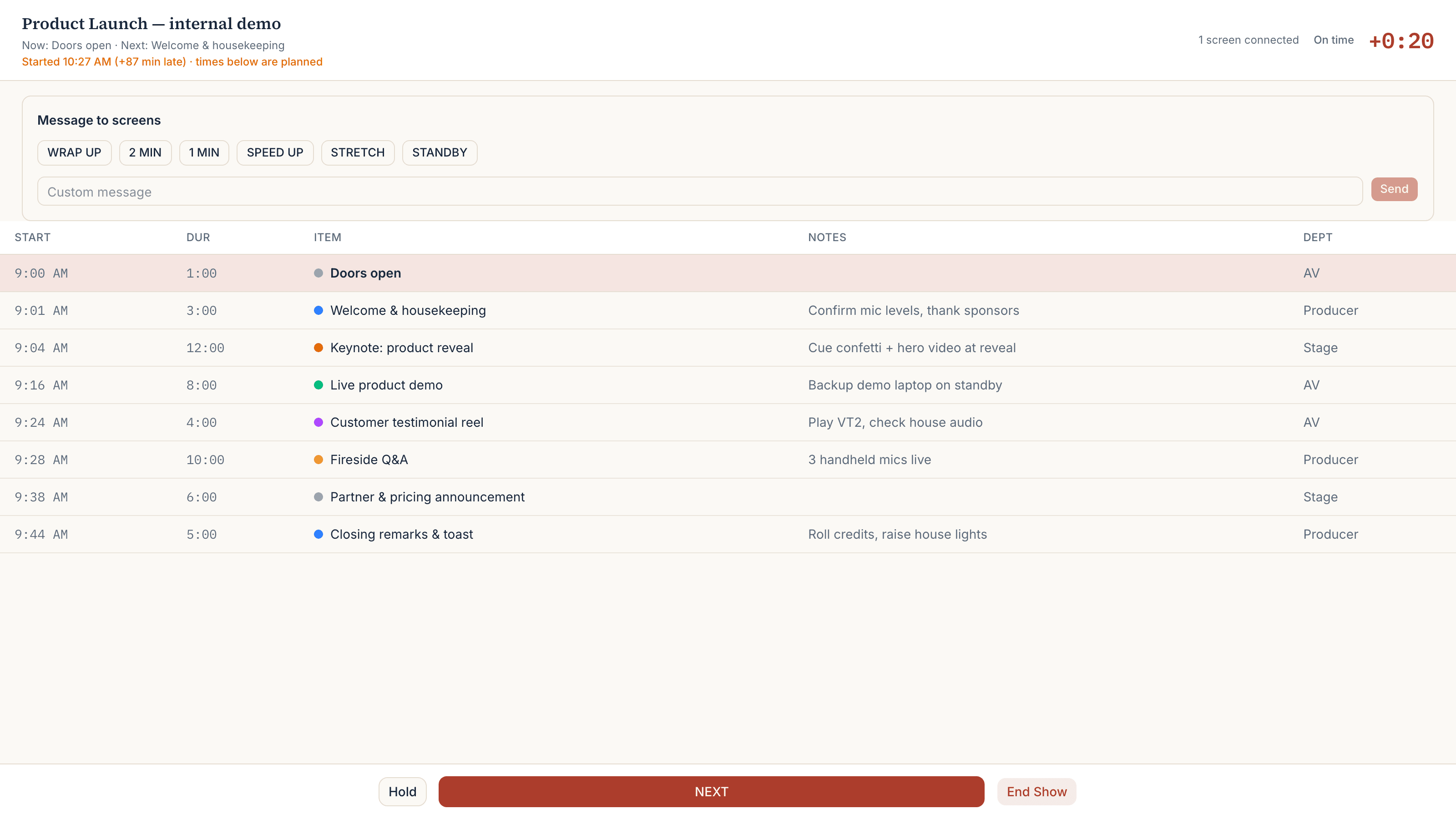
This is the mechanic the whole product is built around, so here is exactly what happens to the schedule while a show is live:
- Rows already played keep their planned times.They are history; the grid doesn’t rewrite the past.
- The current item starts at the moment it really started (when NEXT was pressed), not at its planned slot.
- Until the current item overruns, nothing below it moves. Its projected end is its planned end.
- Once elapsed time passes the planned duration, the projected end moves with the wall clock — the countdown counts up past zero — and every row below shifts second by second until you press NEXT or Hold. No one retypes anything; the crew screen a floor away shows the new start times as they slide.
- Holds push downstream times the same way, and the projection is continuous across Resume — no jump when the hold ends.
7. Ending the show
End Show(with a confirmation — it can’t be undone) stops the live state and marks the rundown as done. Crew and stage screens show “Show ended.” A done rundown no longer counts against the free plan’s one-active-rundown limit, so you can create the next event’s rundown immediately.
8. Known limitations
One current limitation worth knowing before show day: the schedule grid is anchored on the plannedshow start. If the show is called late — doors held, you press Start Show at 9:31 instead of 9:00 — the grid still reads 9:00, 9:03, 9:05 down the page, and a badge on the live views says so explicitly (“Started 9:31 AM, +31 min late”) rather than silently rewriting the times. This is deliberate: Runsheet never converts a real timestamp into a wall-clock time, because no venue timezone is stored and using each viewer’s browser timezone would make two crew members in different timezones disagree about the same grid.
For what each connected screen shows and how screens are counted, see Share links, screens, and plans.